

Explore
The centre holds views of the image, each a tab you can drag into a split. The buttons in a view’s tab switch what it shows; + adds a view or arranges them all.
| View | Shows |
|---|---|
| Plane | One plane, full canvas; it can show another image than the selected one (its tab menu) |
| 2D | The XY, XZ and YZ planes through the 3D cursor (volumes) |
| 3D | The volume rendered, with the annotations (volumes) |
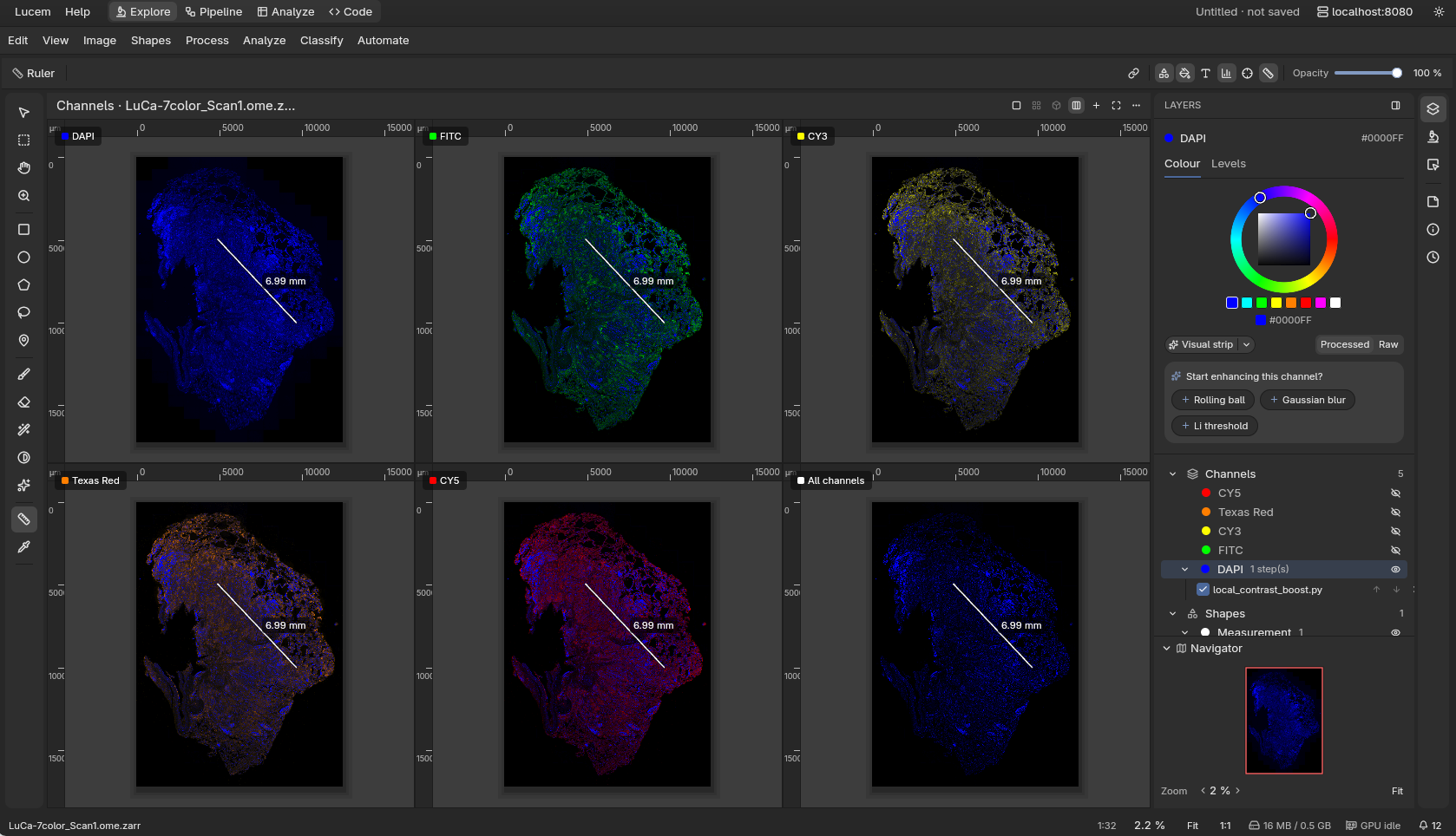
| Channels | Each channel on its own and all together, moving together |
Add view or container (+ in a tab) arranges every view as tabs, side by side, stacked or in a grid. Views of one image can move and zoom together.
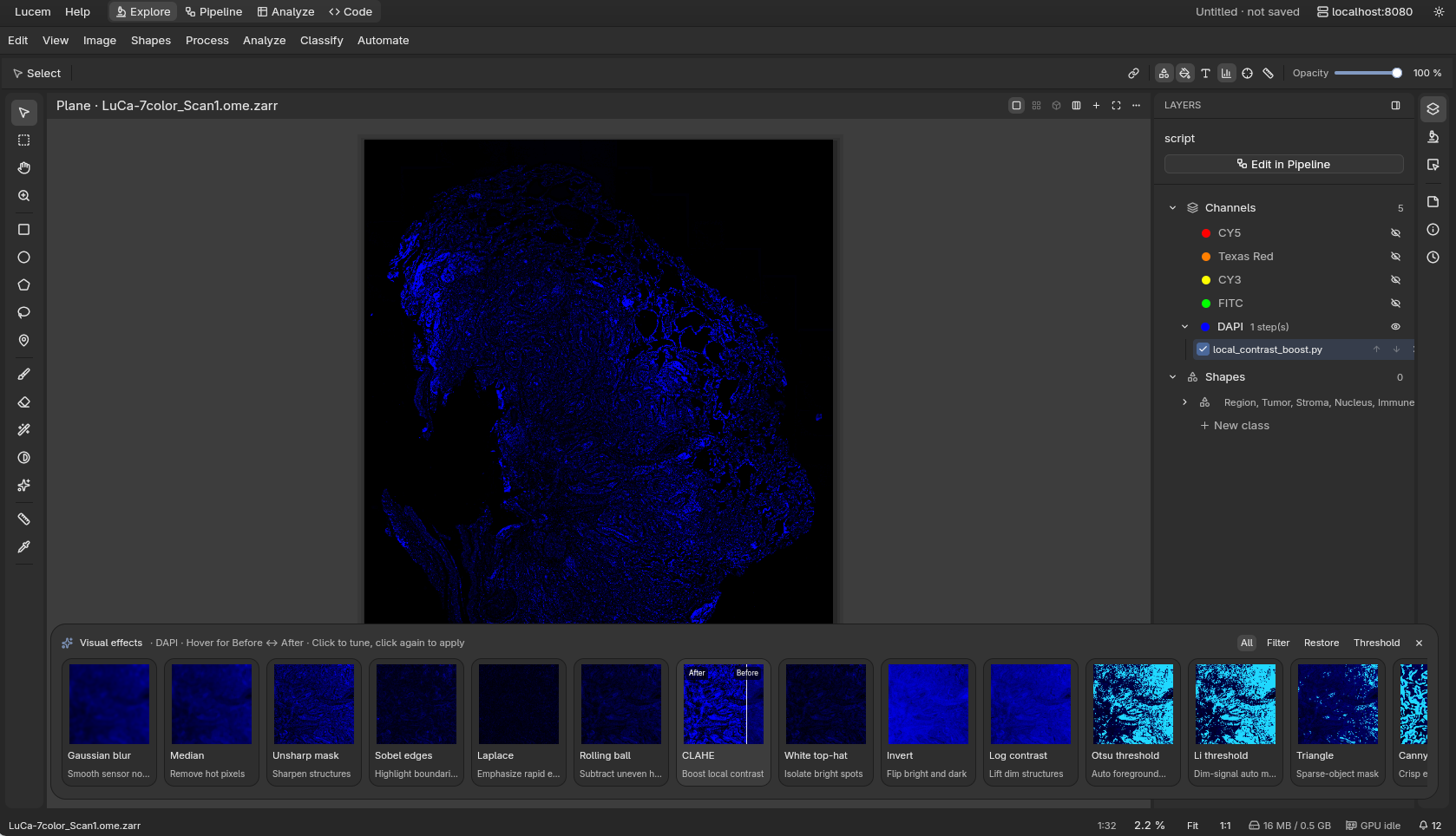
Visual GPU operations
Section titled “Visual GPU operations”Open Process or press F3 to browse all 52 GPU operators with live Before/After hover previews before applying them non-destructively to a channel.
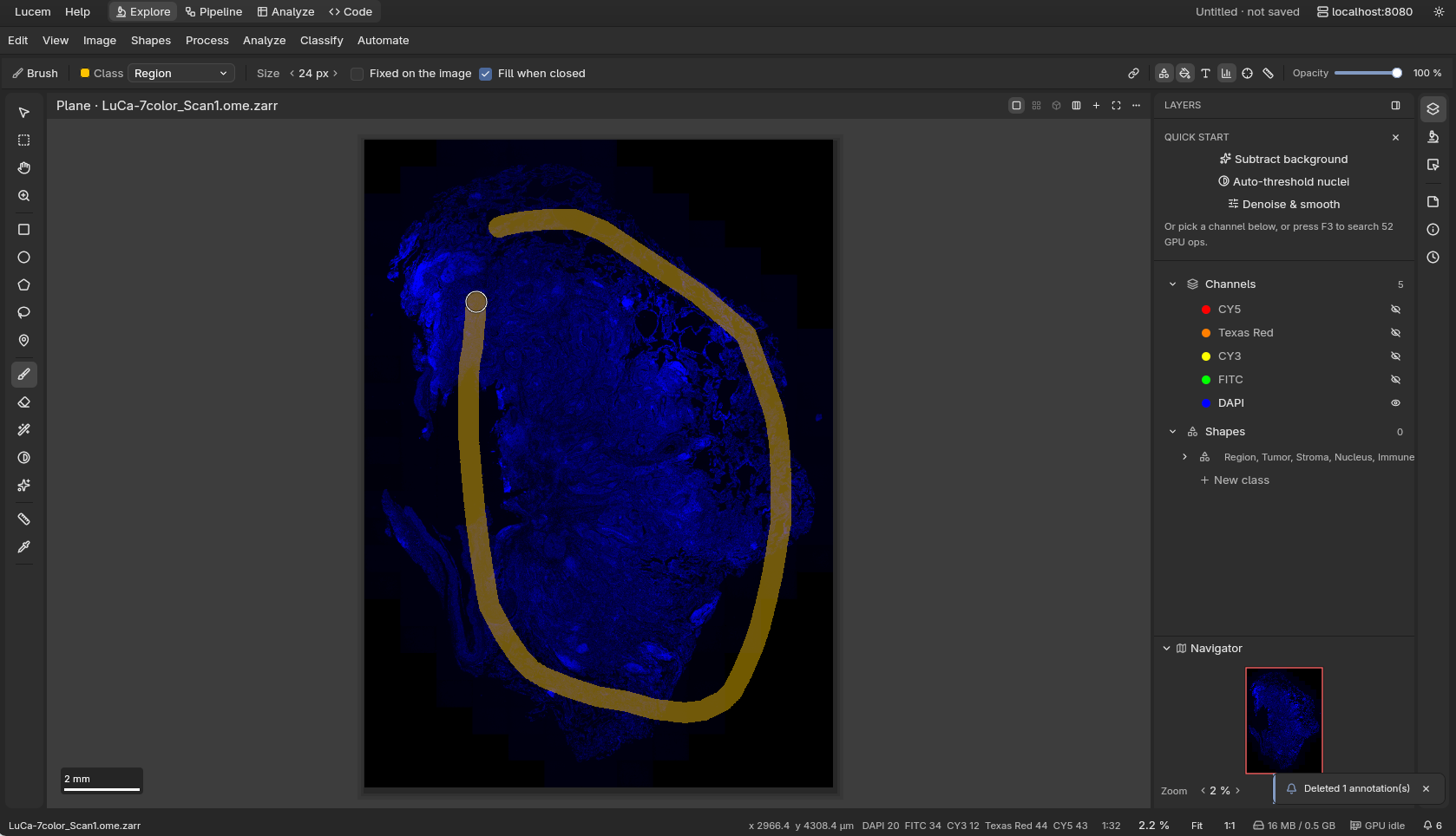
The tool column on the left; the options bar above the views shows the active tool’s settings.
| Tool | Key | Does |
|---|---|---|
| Select | V | Click a shape or a cell to select it, drag to move; Shift adds |
| Region select | M | Drag a box: every shape and cell inside it is selected |
| Hand | H | Move the image (or hold Space with any tool) |
| Zoom | Z | Click to zoom in, Alt+click to zoom out |
| Rectangle, Ellipse | U, O | Drag a shape |
| Polygon, Lasso | P, L | Click corners, or drag around a region |
| Points | N | Click to place a point |
| Brush, Eraser | B, E | Paint a class, or erase paint |
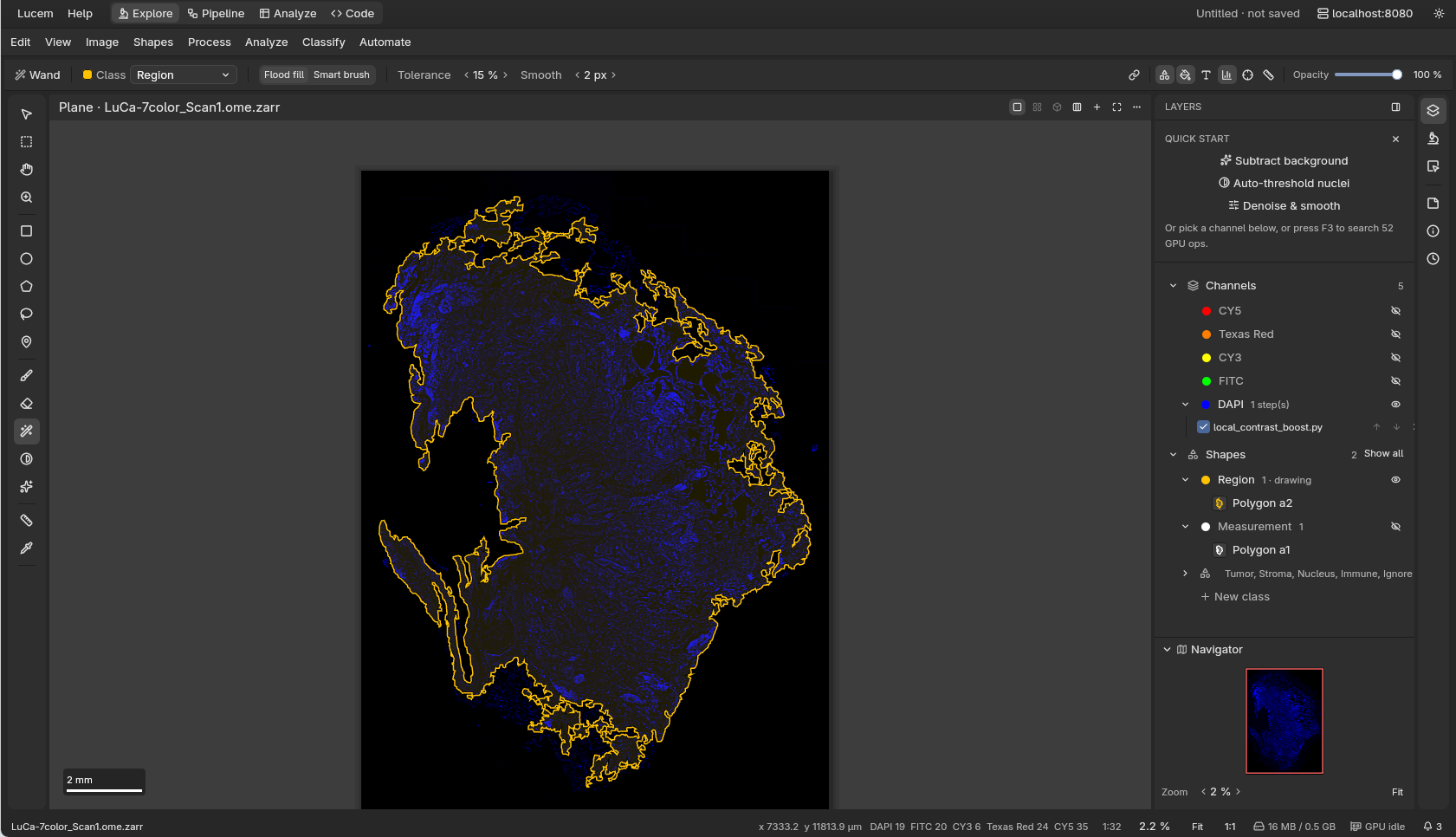
| Wand | W | Paint that follows similar intensity |
| Threshold | T | A live threshold of a channel, turned into shapes |
| Segment (SAM) | S | A model outlines the object you click or box |
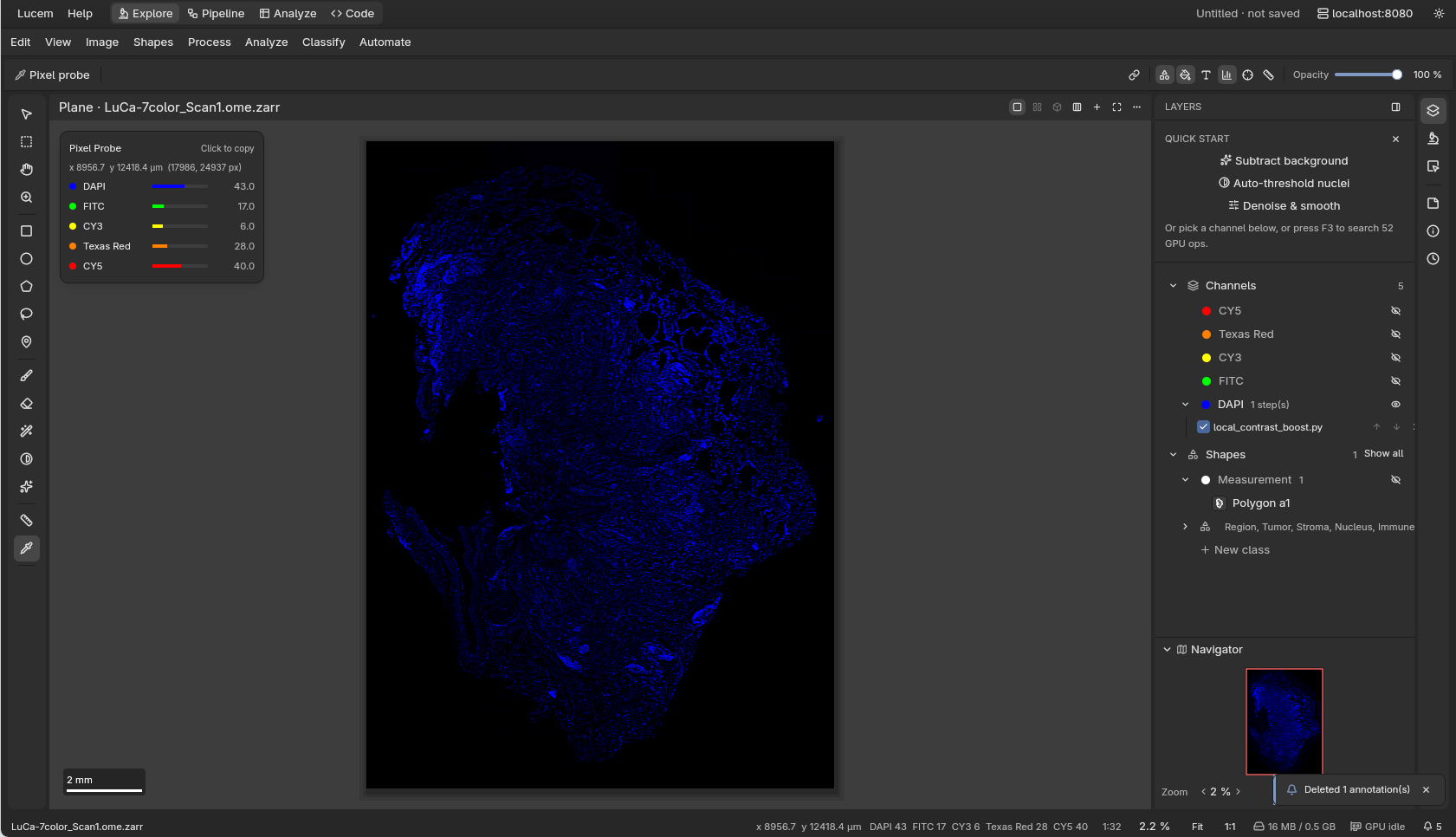
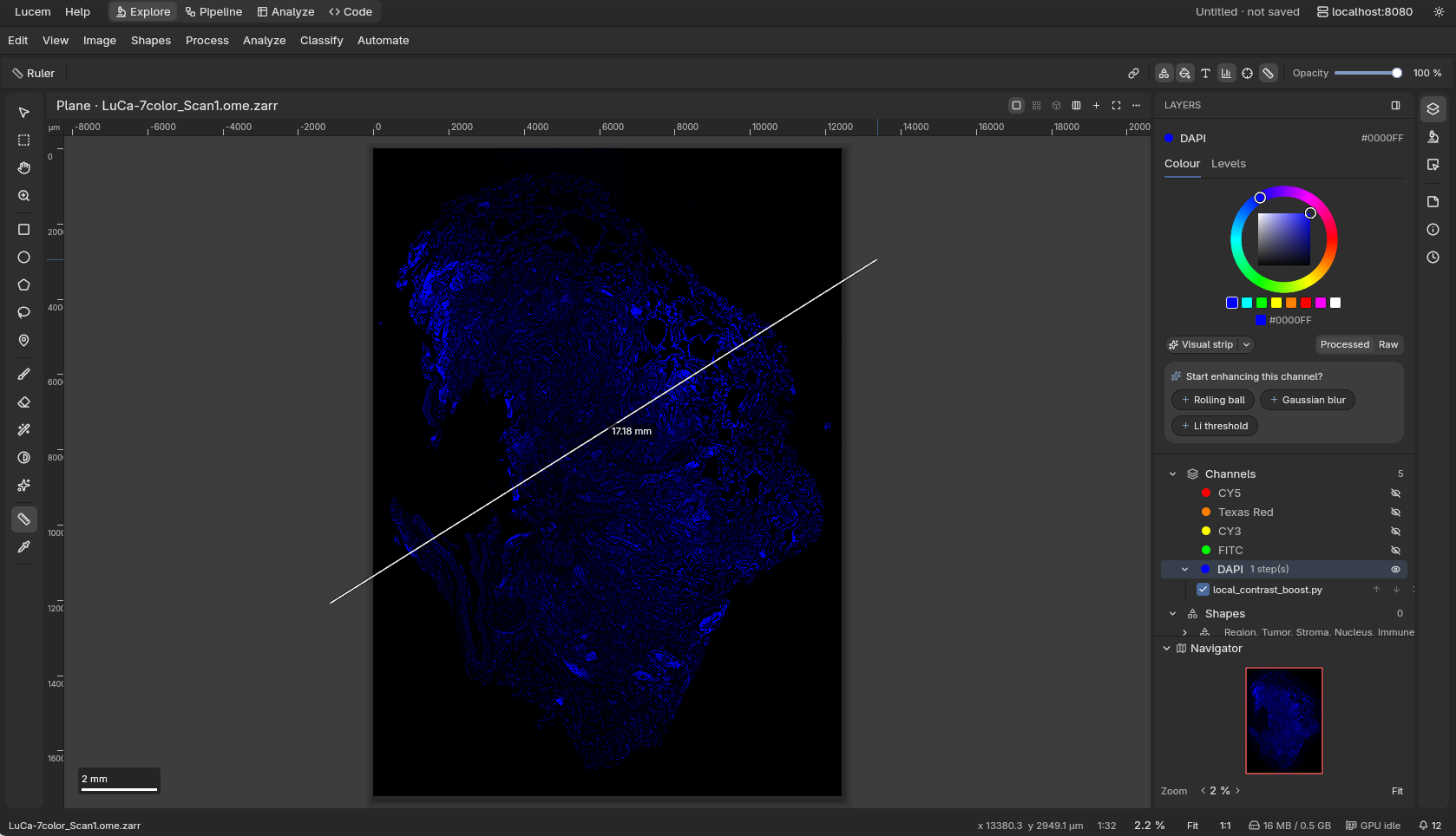
| Ruler, Pixel probe | R, I | Measure a length; read pixel values |
With two or more shapes selected, the options bar offers Add, Subtract, Intersect and Xor: the selected shapes become one (one Ctrl+Z undoes it).
Panels
Section titled “Panels”The rail on the right opens one panel at a time: Layers, Histology, Metadata, then Selection, Notes and History.
- Layers: channels, results, shapes and detections. Select a channel to edit its colour (wheel) and levels (histogram, black and white points, gamma); its processing is listed under them. The Navigator sits at the bottom.
- Histology: the recipes; see Histology.
- Selection: what is selected, with its measurements (the mean of each, for many).
- History: every change, to step back to; then the session’s analysis steps.