
Filter and inspect a recording
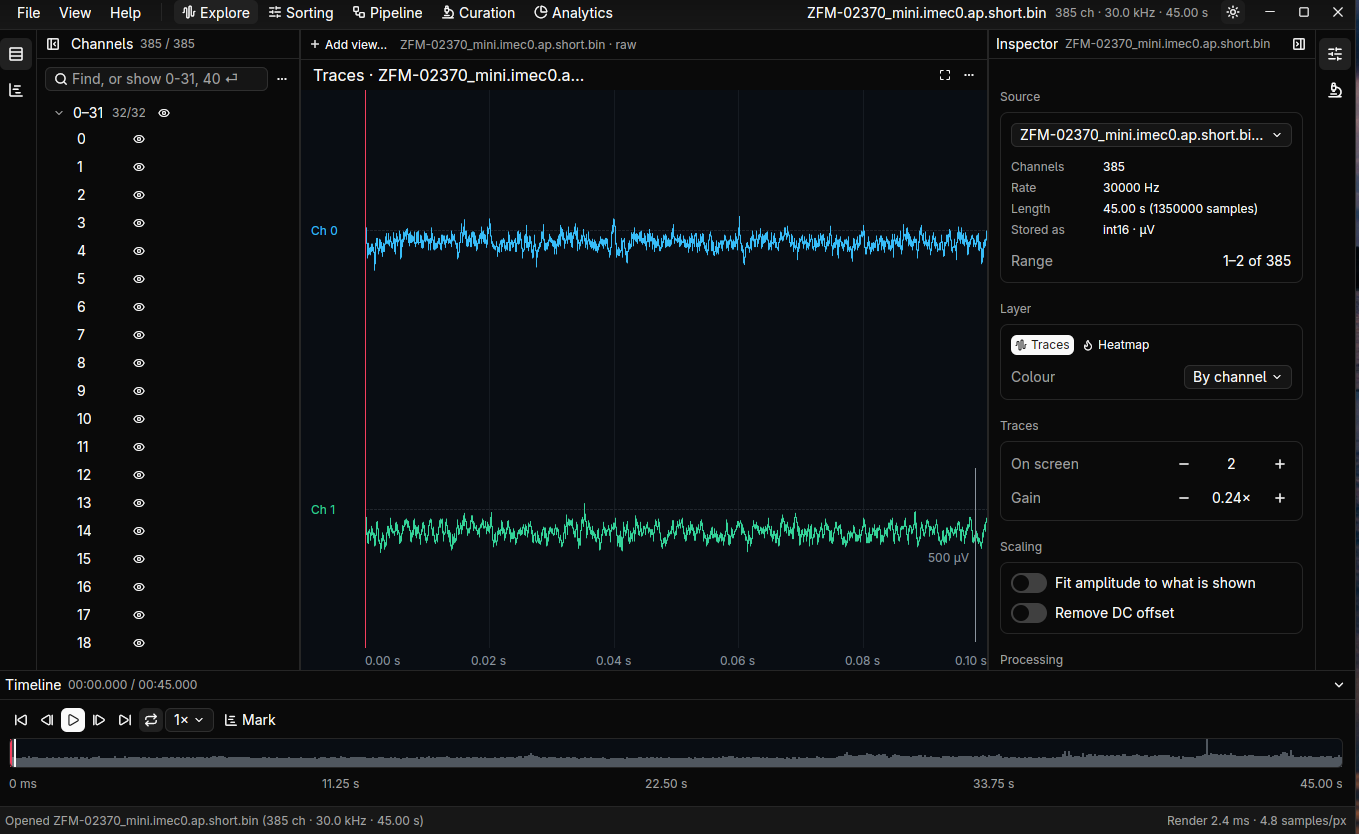
This takes a recording from raw to a processed file.
- Open it. File → Open file… or Open folder… (SpikeGLX, raw
.bin+.meta, NWB Zarr and more). The first open of a long file builds its pyramid in the background; you can scroll meanwhile. - Find what you need. In Explore, zoom out with Ctrl+wheel, and use a heatmap to see all channels. Double-click it to bring a channel up as traces.
- Clean it. Click the view, then in the Inspector use Add op under processing. A common start for extracellular data is Filter → IIR → Spikes · band-pass 300–6000 Hz, then Reference → CMR.
- Compare. Turn an op off to see the signal without it.
- Keep it. In the Inspector, Write processed recording saves the chain to a float32 Zarr file, with its spec beside it, so the file says how it was made.
Run the same thing outside the app
Section titled “Run the same thing outside the app”The operations of a view are pipeline spec nodes. So what
you tuned here also runs from dspk run or dspk.pipeline.run, on a whole folder of recordings.
See the graph
Section titled “See the graph”Open the Pipeline workspace: your view is a chain on the canvas. From here you can branch it, write several outputs, or make the chain a recipe.