
Explore
Explore is laid out like a code editor. Time views fill the centre, a panel can open on each side, and the timeline runs along the bottom.
| Area | What it holds |
|---|---|
| Centre | The views: tabs and splits you rearrange by dragging a tab |
| Left | Channels, or Timeline with its tracks (recordings, epochs) |
| Right | The Inspector, and panels from plugins |
| Bottom | The timeline, minimised to its header when you don’t need it |
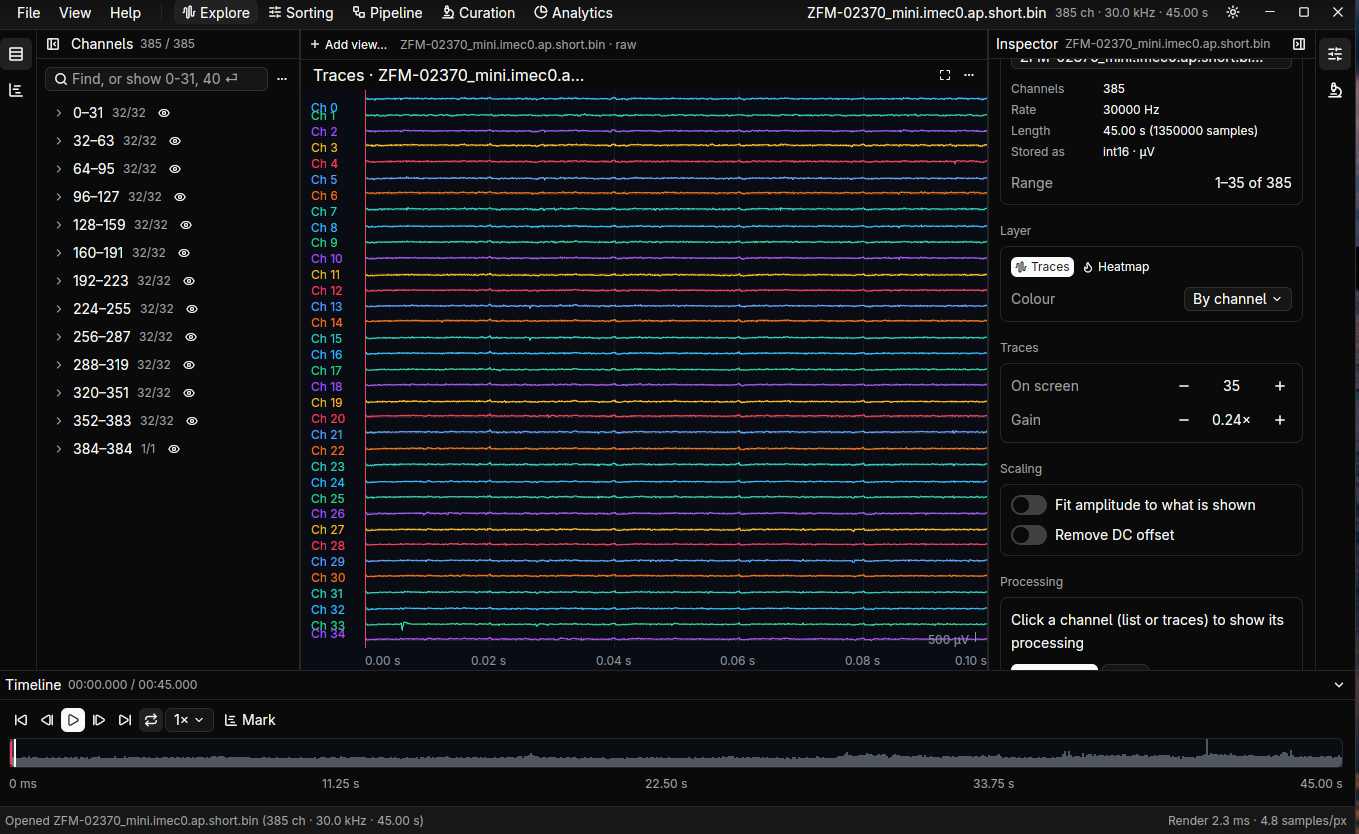
Clicking the icon of the panel showing hides that side. Ctrl+B, Ctrl+Alt+B and Ctrl+J show or hide Channels, the view settings and the Timeline.
Add a view or container
Section titled “Add a view or container”Add view or container opens a dialog, which also works from the keyboard (arrows, Enter, Esc).
- Containers arrange views: tabs, horizontal, vertical or grid.
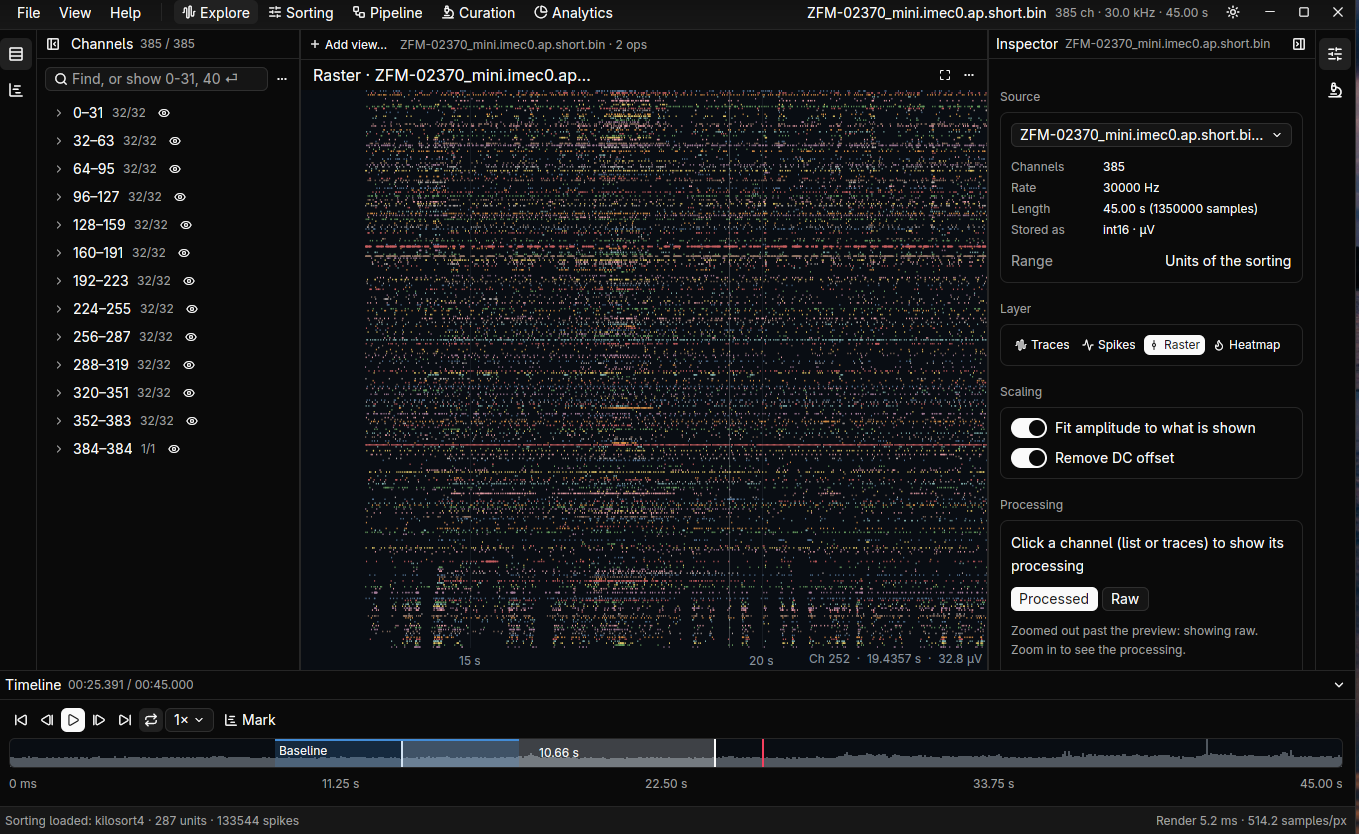
- Views are general kinds: traces, heatmap, and raster when a sorting is linked.
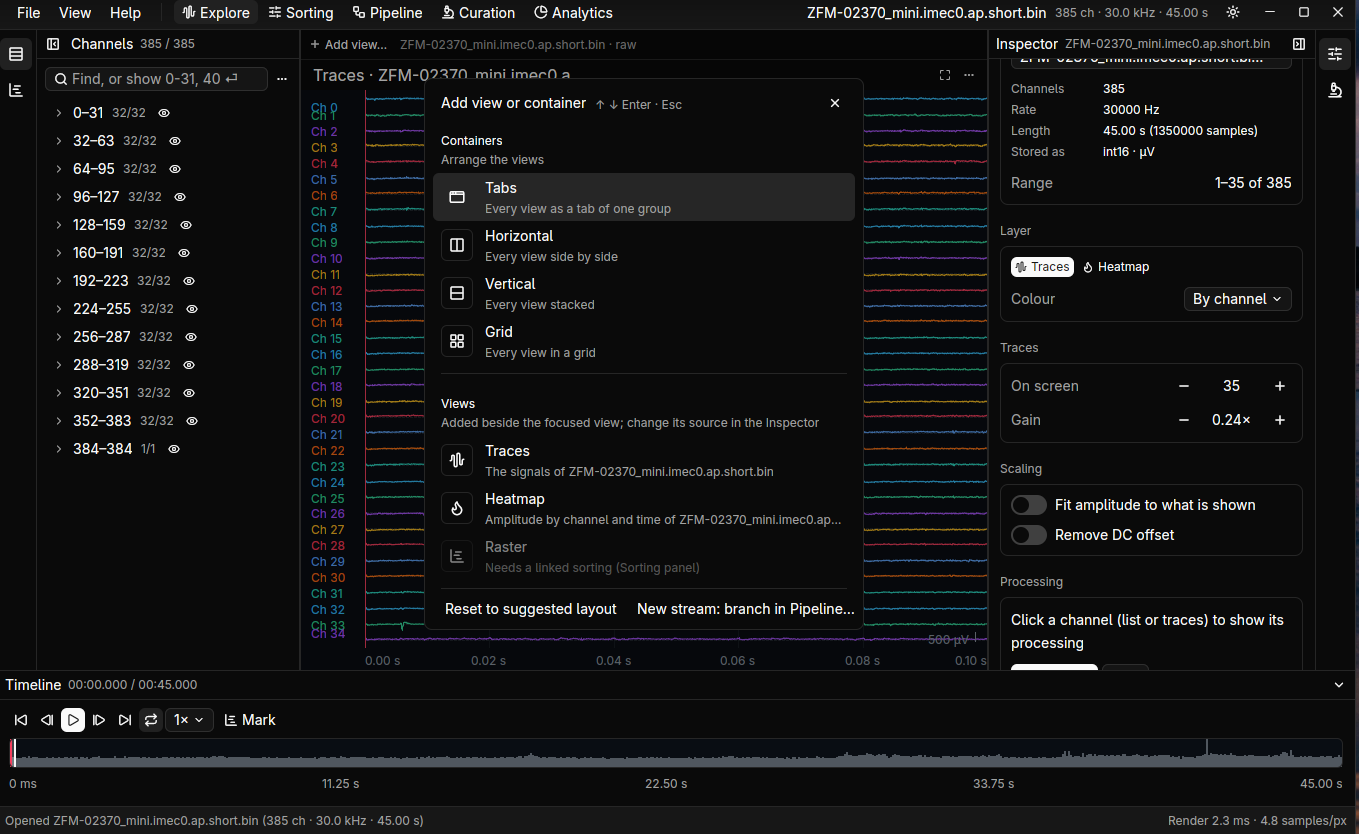
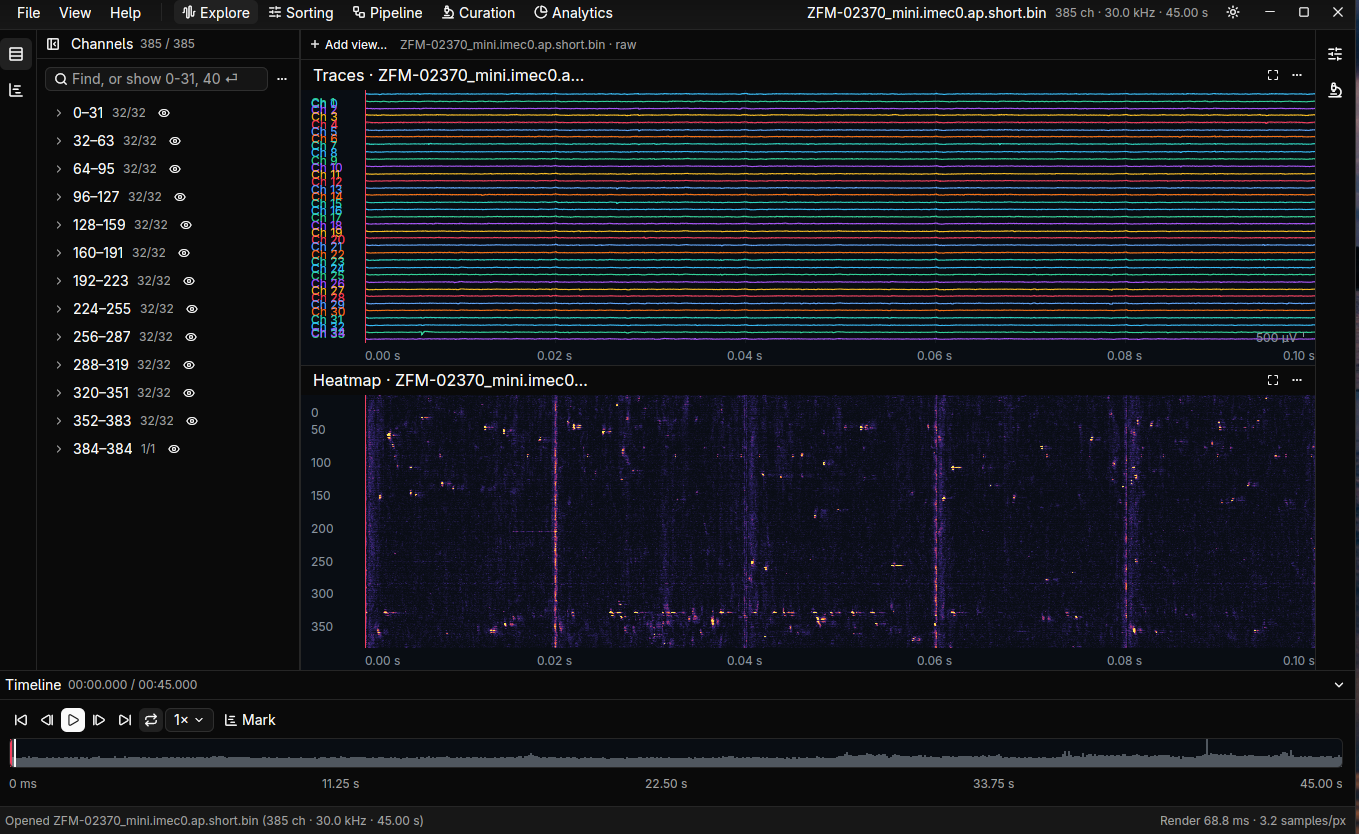
A new view goes beside the one in focus. Its options are in the Inspector, not in the dialog. Ctrl+T and Ctrl+H add a traces or heatmap view directly.
The Inspector
Section titled “The Inspector”The Inspector shows what is selected, in one place. For a view:
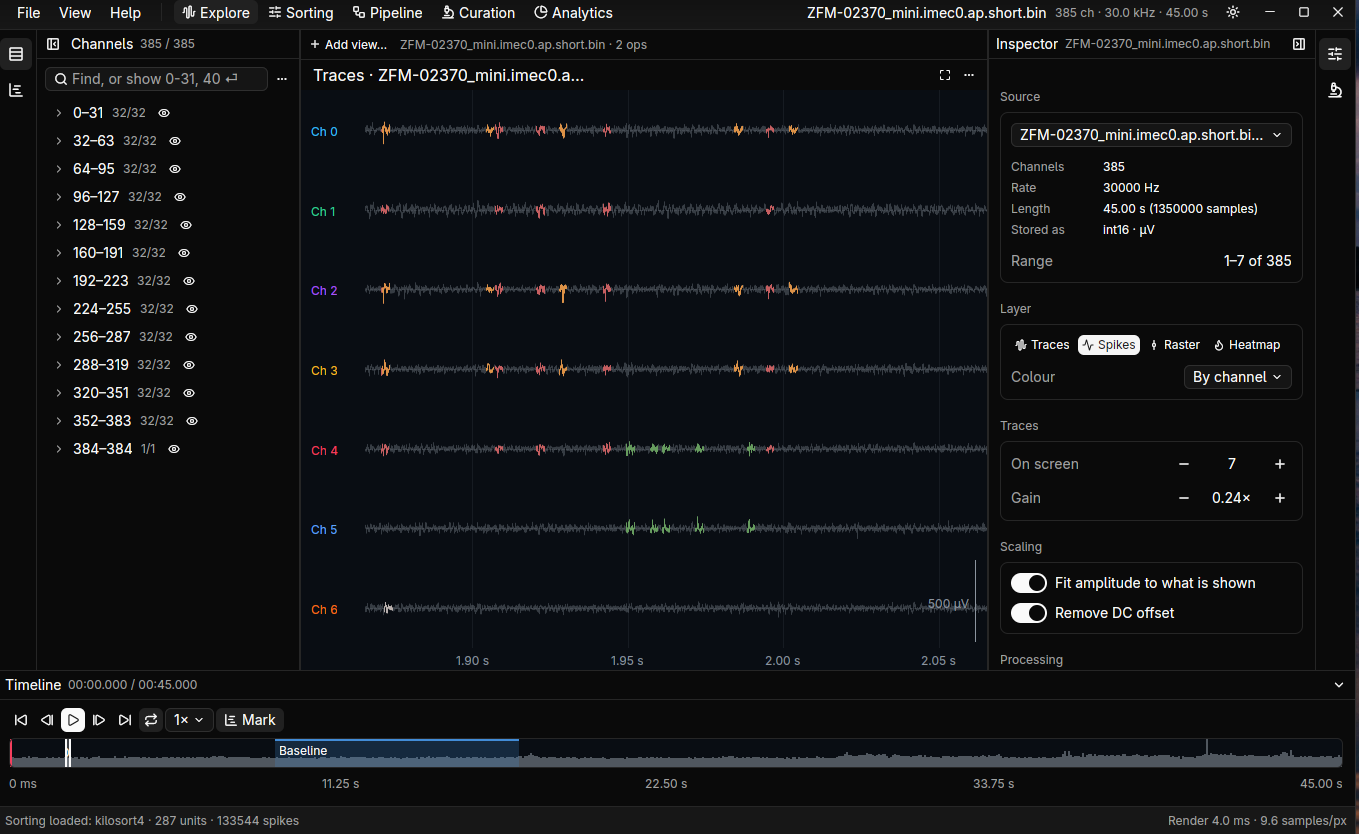
- Source: the one place to pick what it reads, and what that source is. The title bar names it.
- Display: how it is drawn, such as gain and how many traces.
- Processing: its chain of operations. Add op has one submenu per family, with presets under each operation. Each op can be switched off to compare with and without it.
- Output: write the chain to a file.
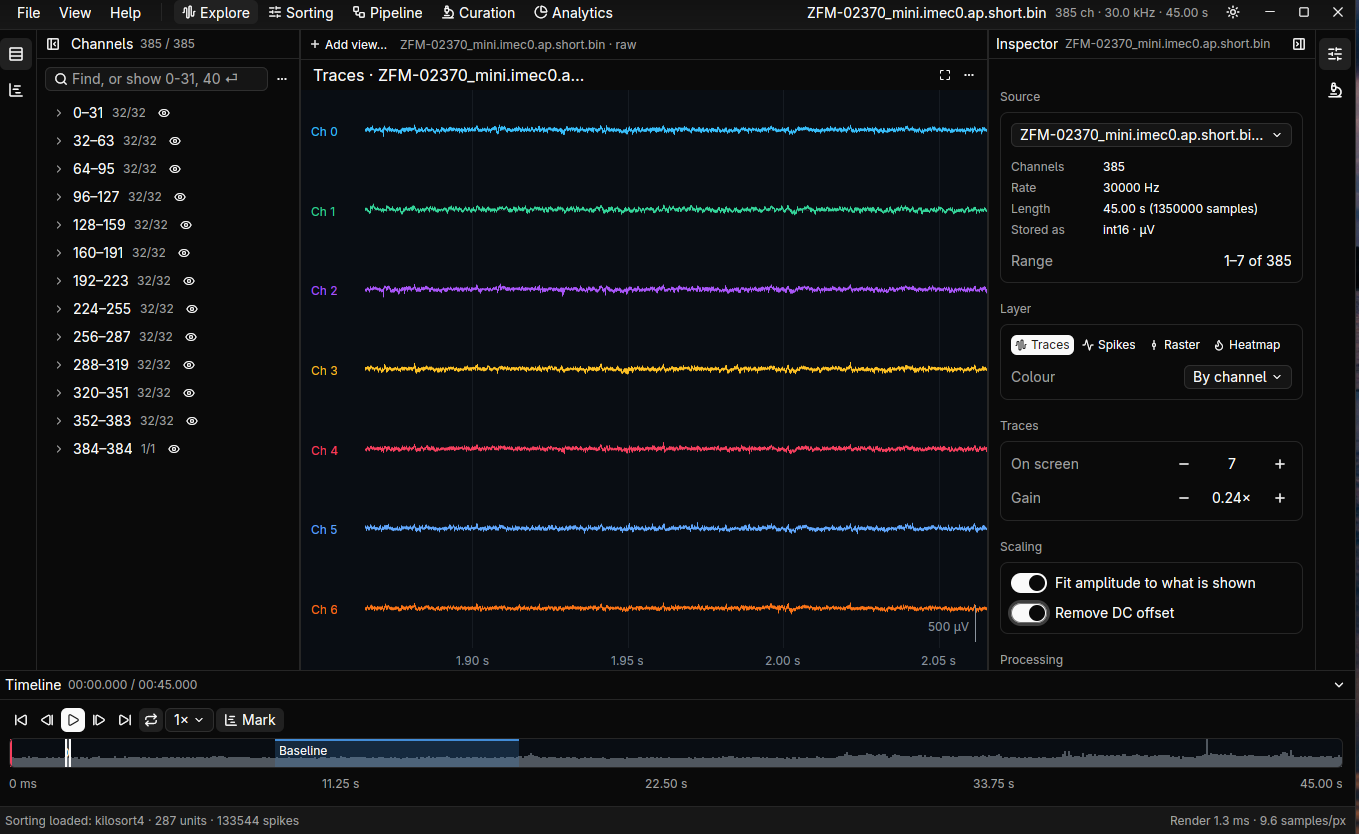
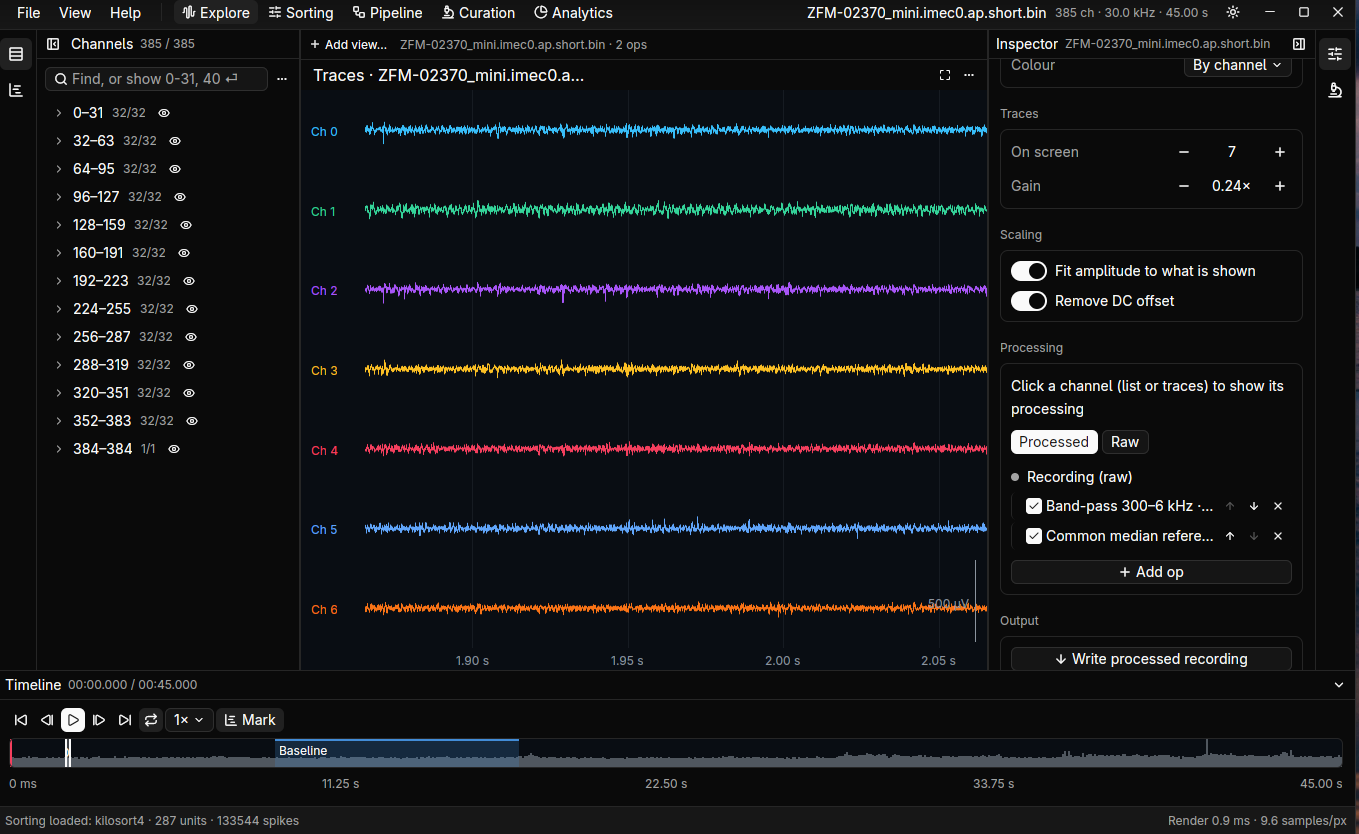
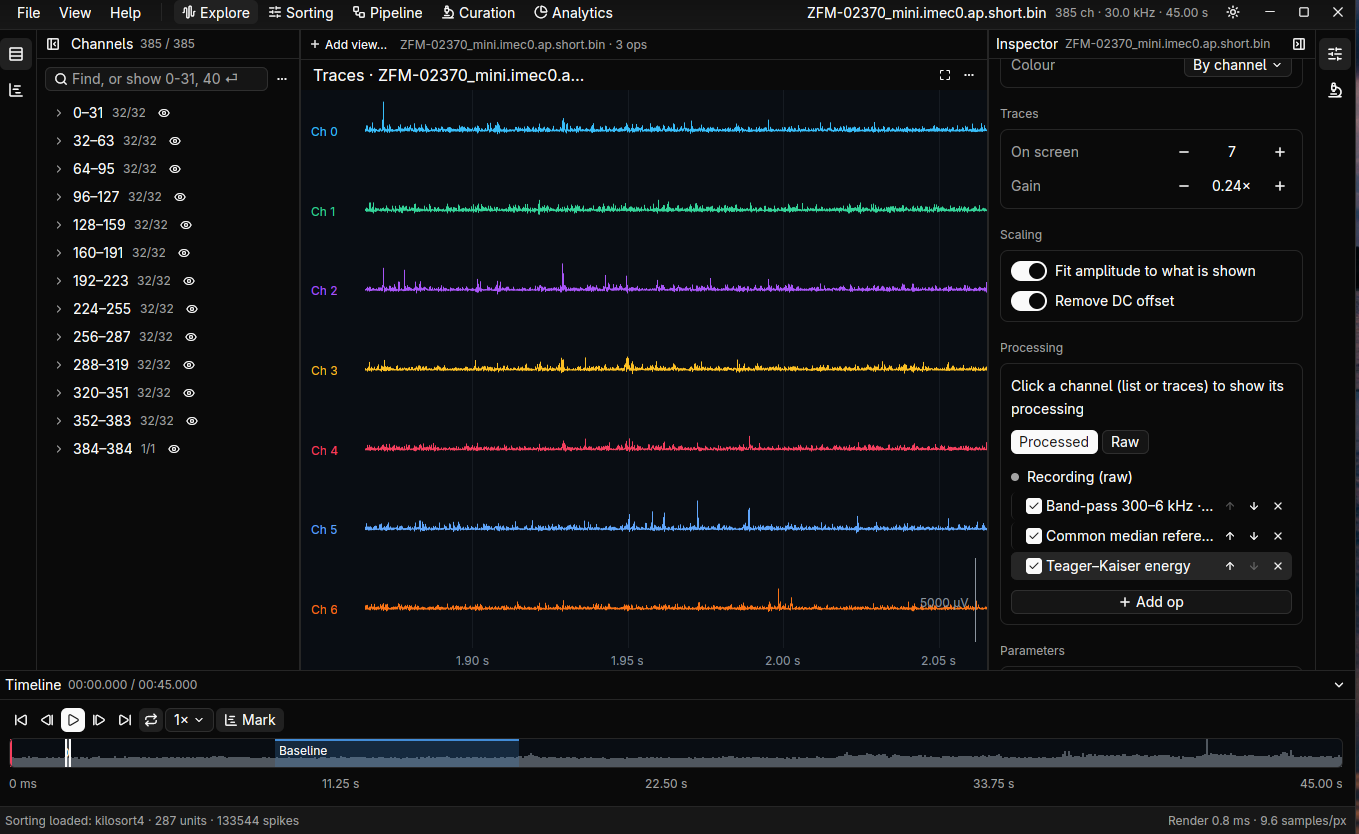
The chain previews live on the device. A chain with whitening shows the raw signal and says “fitting the whitening…” until the fit is done.
Moving around
Section titled “Moving around”Click a view first, then drag to move in time, Ctrl+wheel to zoom at the pointer, wheel to scroll channels, and Alt+wheel for gain. Double-clicking a heatmap shows that channel in a traces view. The full list is one F1 away.
Epochs
Section titled “Epochs”Mark spans of a recording as epochs on the timeline. They’re saved in the session, and in the
epochs group of <recording>.dspk.zarr, the one Zarr store that holds what the app derives
from a recording (epochs, event sets). Epochs saved by older versions in
<recording>.epochs.zarr are still read.
An NWB recording (.nwb.zarr) brings its own intervals: every row of its /intervals tables
(epochs, trials, …) becomes an epoch when the recording opens, typed after its table (epoch,
trial) and shifted to the recording’s start. Epochs already in the session are not added twice.
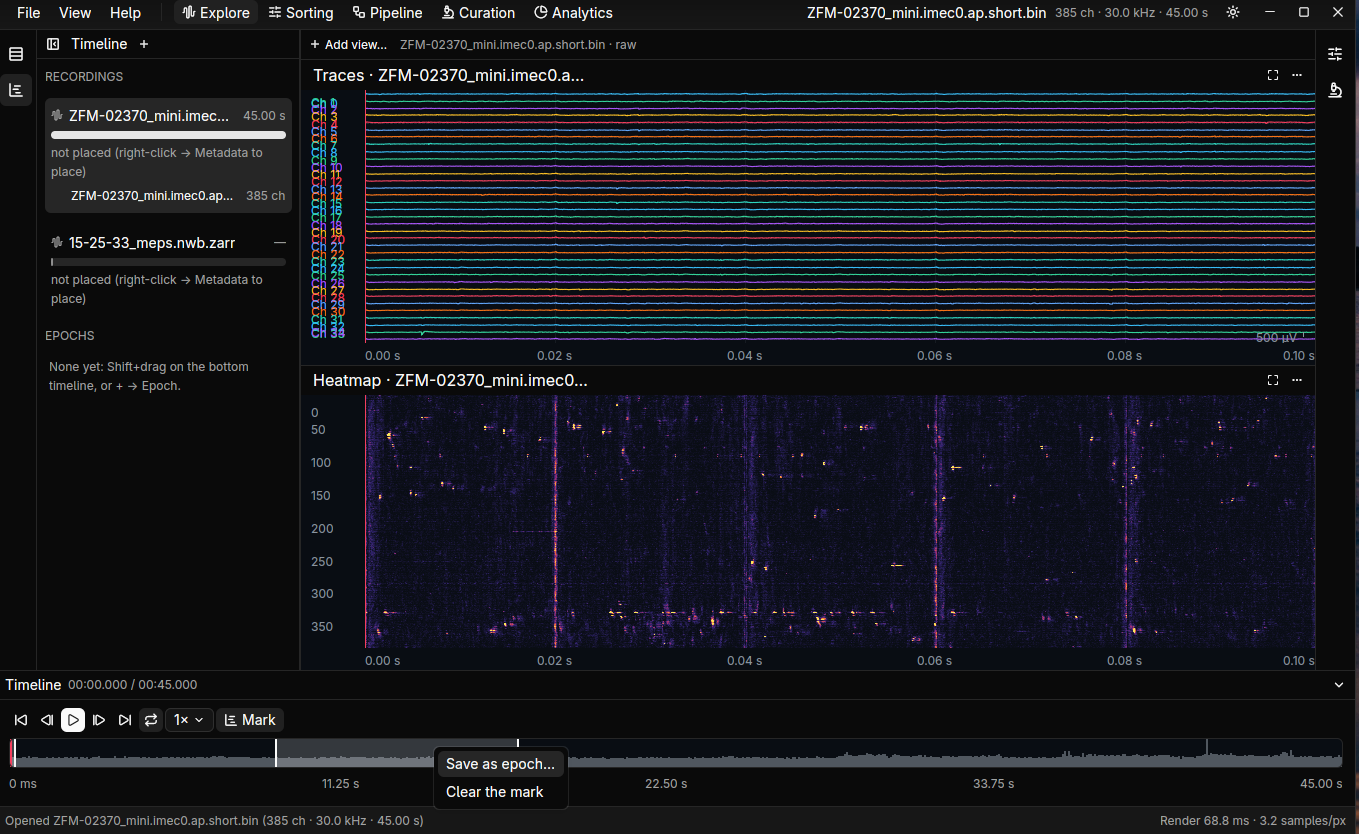
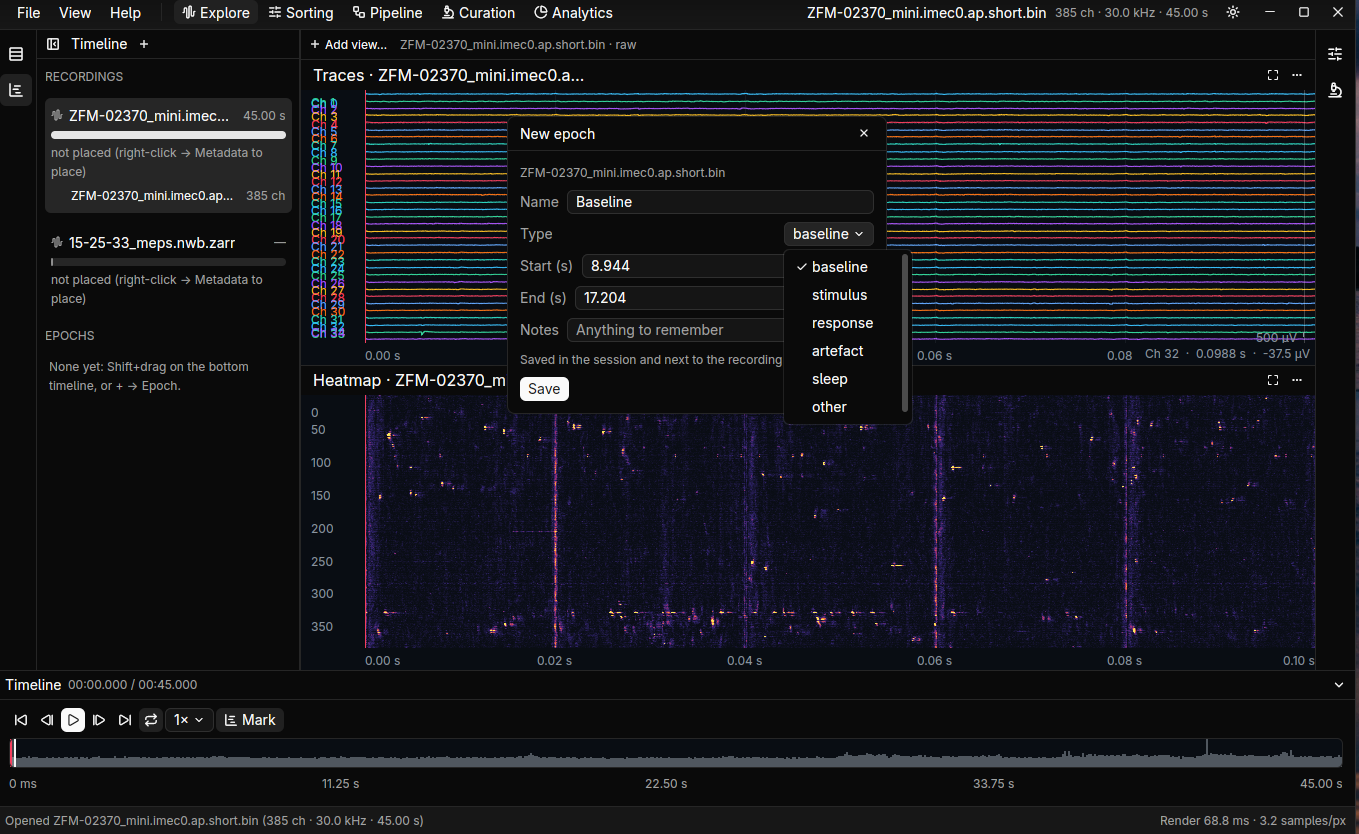
Shift+drag on the timeline, or use Mark, then Save as epoch…. The dialog names the epoch and gives it a type.
Several recordings
Section titled “Several recordings”To see another recording beside the open one, right-click it in the Timeline tab and choose Show beside the open recording. It loads in the background and a traces view of it opens under the focused view; the open recording stays the active one (its processing, selection and Inspector).
Both views follow the one timeline. When the recordings are placed on the session’s time (right-click → Metadata), the view of the other recording is shifted by the difference, so events at the same session time line up. A view of another recording shows it as stored (previews and spikes belong to the open recording) and keeps its own channel selection. It’s saved with the layout and comes back while that recording is loaded.
Several sources
Section titled “Several sources”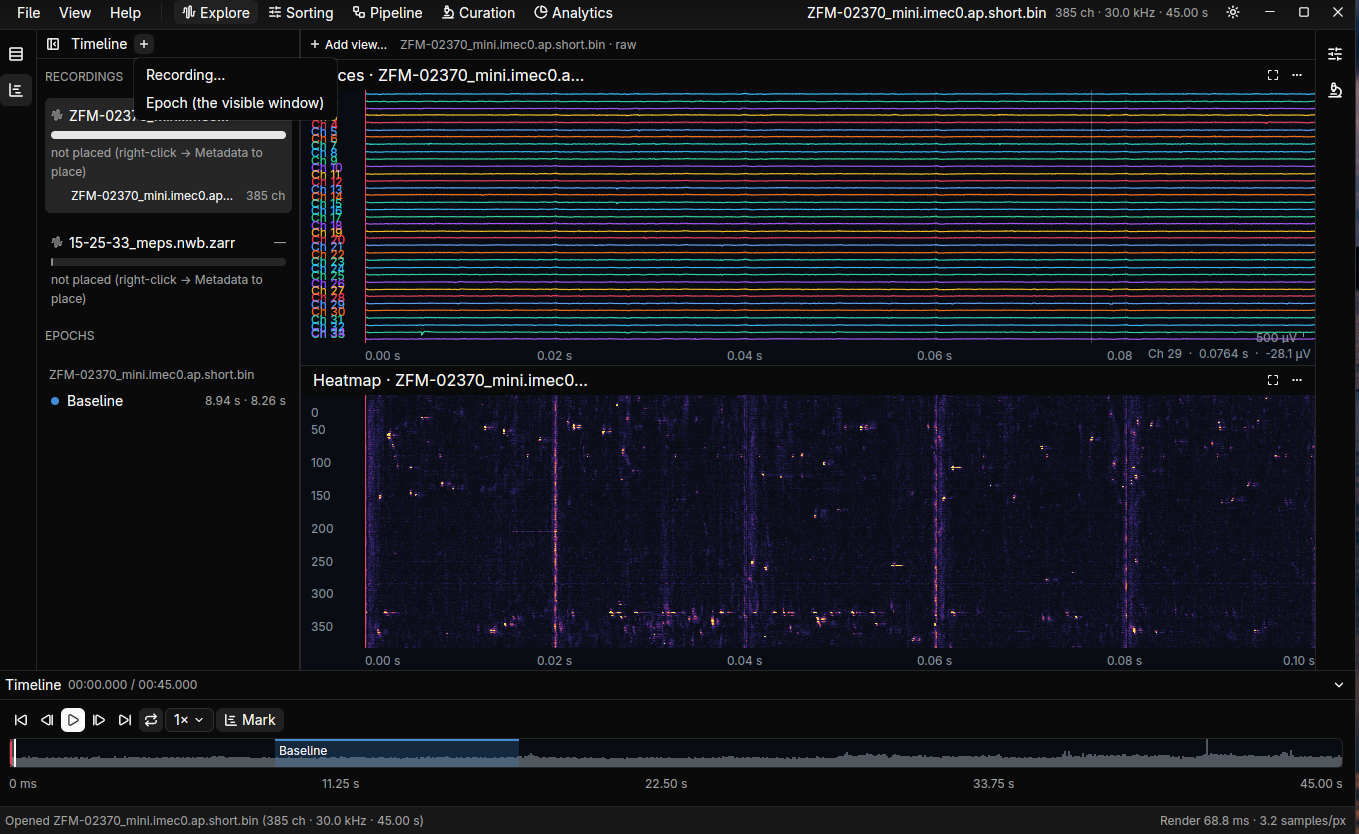
A file can hold several sources (an NWB file with neural and EMG channels, for example), and views can show different sources and different recordings side by side. Each view has its own chain. A view you close or switch away is forgotten if it holds no work; a view with processing stays.